
Photographs · From your gallery to paper
Wedding newspaper photos: choose, crop and check them for print
A photograph can look lovely on your phone and still be the wrong fit for a newspaper frame. Start with the original file, choose a picture that works in the space, and check the final printed size before ordering your copies.
What resolution should wedding newspaper photos be?
Check the pixels remaining after cropping at the size the image will print. Newspaper Club recommends 150–300 dpi for newspaper images; your printer’s own requirements take priority. A 1200-pixel-wide crop printed four inches wide has 300 pixels per inch. Also check focus, faces, the crop and a physical proof: pixel count alone does not guarantee a good photograph.
1. Give each photograph a job
Choose the pictures while planning the page, rather than filling every available space with a favourite portrait. A cover needs an immediate focal point. A relationship timeline needs a few recognisable moments. A small pet portrait needs a face that still reads when it is tiny. The same file does not have to do all three jobs.
| Place on the page | What to look for | What to test in the crop |
|---|---|---|
| Cover | A clear picture of you both, with expressions you like and a simple focal point. | Both faces remain visible, with room above heads and around shoulders. |
| Main love-story photo | A scene that adds something to the story: a place, shared activity or different moment. | The shape fits the frame without cutting out the detail that makes it meaningful. |
| Timeline | Distinct moments that can be understood at a small size. | The subject stays recognisable inside a small or circular frame. |
| Pet spotlight | A clear face with visible eyes and some separation from the background. | Ears, nose and expression survive the crop. |
If you do not have engagement photographs, choose a good everyday picture. A meaningful image from a walk or a favourite café can tell guests more than a formal portrait chosen only for sharpness. Avoid building a timeline from nearly identical selfies unless the repeated pose is part of the story.
Decide whether the edition is being made before or after the wedding. A pre-wedding newspaper needs photographs you already have; wedding-day portraits cannot be part of that print deadline. Keep the plan achievable with your current gallery. Our page ideas guide can help you decide where photographs add value and where words or practical details should lead.
2. Gather original files before editing
Use the original camera file or a full-resolution download supplied by your photographer. If someone sends an image in a message, ask for the original file or a download link rather than taking a screenshot of the chat. A screenshot includes only the pixels displayed at that moment and may add interface elements or borders.
Keep a folder with the originals and a separate folder for newspaper choices. Give the selections useful names such as “cover-garden”, “timeline-first-home” and “pet-biscuit”. Keep an uncropped original even if you prepare a second version: changing the newspaper format may require a wider or taller crop later.
- Check permission. Use photographs you are entitled to reproduce, and check your photographer’s terms if unsure. Ask before including a sensitive image of someone else.
- Inspect the file itself. Open its information or properties and note its pixel dimensions, such as 3000 × 2000. File size in megabytes alone does not establish print quality.
- Look for baked-in edits. Watermarks, text, decorative borders and heavy filters become part of the printed photograph.
- Keep a replacement. If a favourite is too small or too tightly framed, shortlist another image before finalising the page.
3. Check pixels at the size the photo will print
Image resolution depends on how many pixels are available for each printed inch. Newspaper Club recommends 150–300 dpi for newspaper images; its guidance warns that images below 150 dpi may appear pixelated. Adobe describes 300 ppi as a common high-quality print standard. Follow your chosen printer’s specifications rather than treating one number as a guarantee for every paper and process. See the source notes below.
For photographs, “ppi” means pixels per inch. Printers sometimes describe image requirements as “dpi”, although a printer’s ink-dot resolution is a different measurement. For the calculation here, use the image’s pixels and the physical size of its frame:
Effective ppi = pixels remaining after cropping ÷ printed length in inches.
For millimetres, divide the printed length by 25.4 first. Check width and height; use the lower result.
| Printed width | Pixels for 150 ppi | Pixels for 300 ppi |
|---|---|---|
| 2 in / 50.8 mm | 300 px | 600 px |
| 3 in / 76.2 mm | 450 px | 900 px |
| 4 in / 101.6 mm | 600 px | 1200 px |
| 5 in / 127 mm | 750 px | 1500 px |
For example, a crop containing 1200 × 900 pixels placed in a 4 × 3 inch frame has 300 ppi in both directions. The same crop at 8 × 6 inches has 150 ppi. This is why a file can be suitable for a small timeline portrait but less suitable for a large cover.
Enough pixels do not repair missed focus, motion blur or strong compression. Check the original at a sensible enlargement and inspect the faces. Changing only the file’s resolution label to “300” does not restore missing detail. Enlarging an image can add calculated pixels, but it cannot prove that the original facial detail is accurate.
4. Cropping changes both the composition and the available pixels
A wide photograph placed into a tall frame may lose much of its sides. A circular portrait loses the corners as well. Start by checking the faces, then hands, pets, meaningful objects and the surroundings that explain the scene. Leave some breathing room so a small adjustment does not cut through someone’s head.
A worked crop example
Suppose an original landscape photo is 2400 × 1600 pixels, and you need a portrait crop with a 3:4 width-to-height ratio. Keeping the full 1600-pixel height leaves a crop only 1200 pixels wide: 1600 × 3 ÷ 4. If that crop prints at 4 × 5⅓ inches, it has 300 ppi. It would be wrong to calculate 2400 ÷ 4 = 600 ppi, because half the original width has been cropped away.
The arithmetic says nothing about whether both people fit into those 1200 pixels. If their faces sit near opposite edges of the original, choose another picture or another frame. Stretching the image to force it into the space changes the people’s proportions.
Check the actual page, not only the upload thumbnail
Look at the photo in the complete page preview. A thumbnail may use a different shape, and a flattering crop in isolation can still sit awkwardly beside a heading or timeline. Where your editor provides positioning controls, check them in the final frame. If the available frame cannot keep the important subjects, replacing the photo is usually the clearest solution.
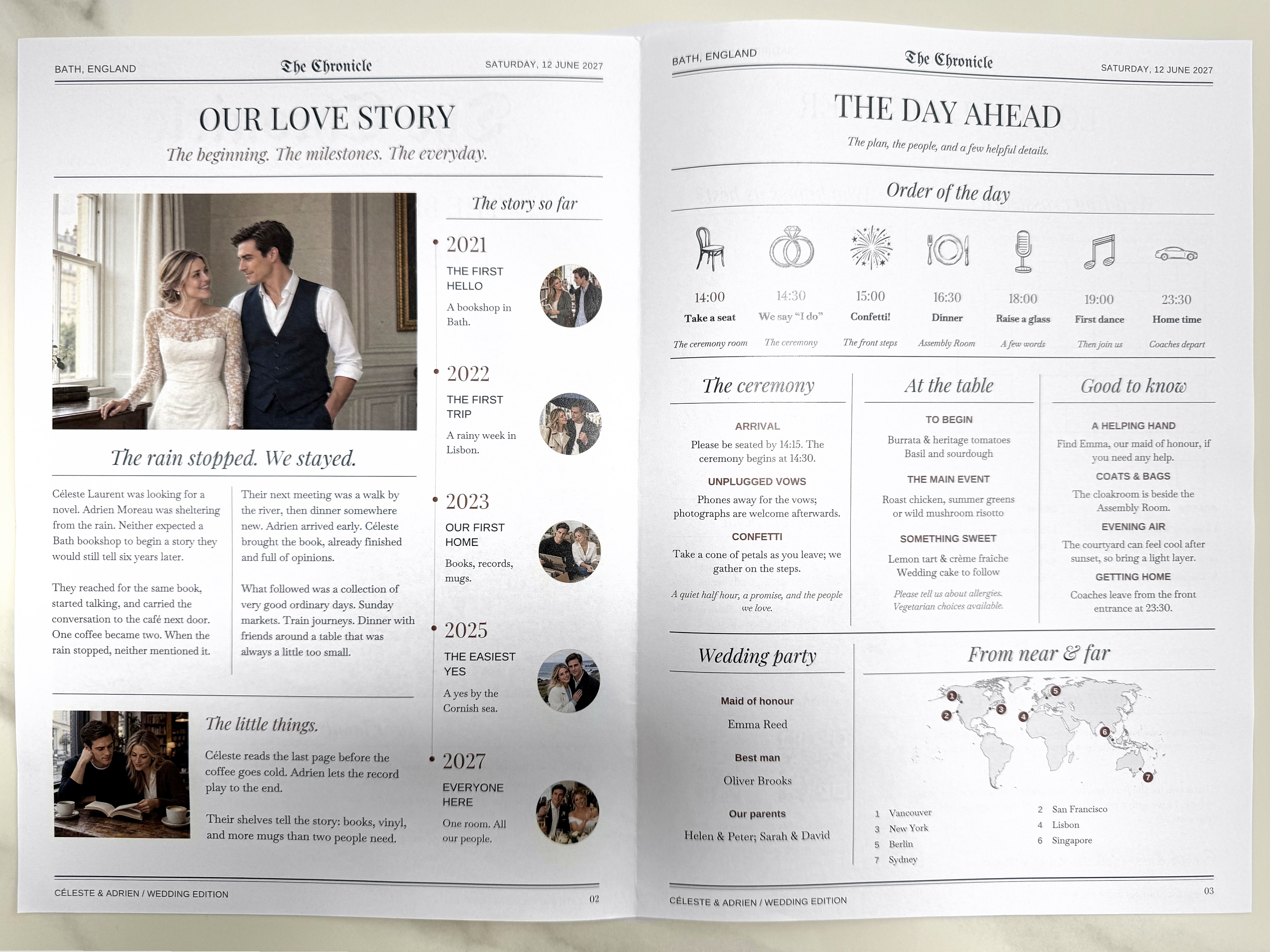
Avoid placing a face or important lettering across a centre fold in a design that allows full-spread photographs. Check where the fold lands in a physical proof. Vowfold’s Chronicle places its story photograph within a single page, rather than requiring a face to cross the spread.
5. Check faces, colour and the chosen paper
Do not decide the print run from a bright phone display alone. Use a physical proof to see whether darker hair, dark clothes and shaded faces remain distinct on the actual stock. If a photo is difficult to read, compare a gently adjusted version with the original before changing the whole gallery. Avoid lifting shadows so far that faces look flat or colours become unnatural.
Look at skin tones across the page as well. A very orange filter beside a cool blue portrait can feel distracting even when both files are sharp. You do not need identical colour grading, but try to keep people looking recognisably themselves. For a black-and-white edition, check a grayscale proof rather than assuming all colour distinctions will remain visible.
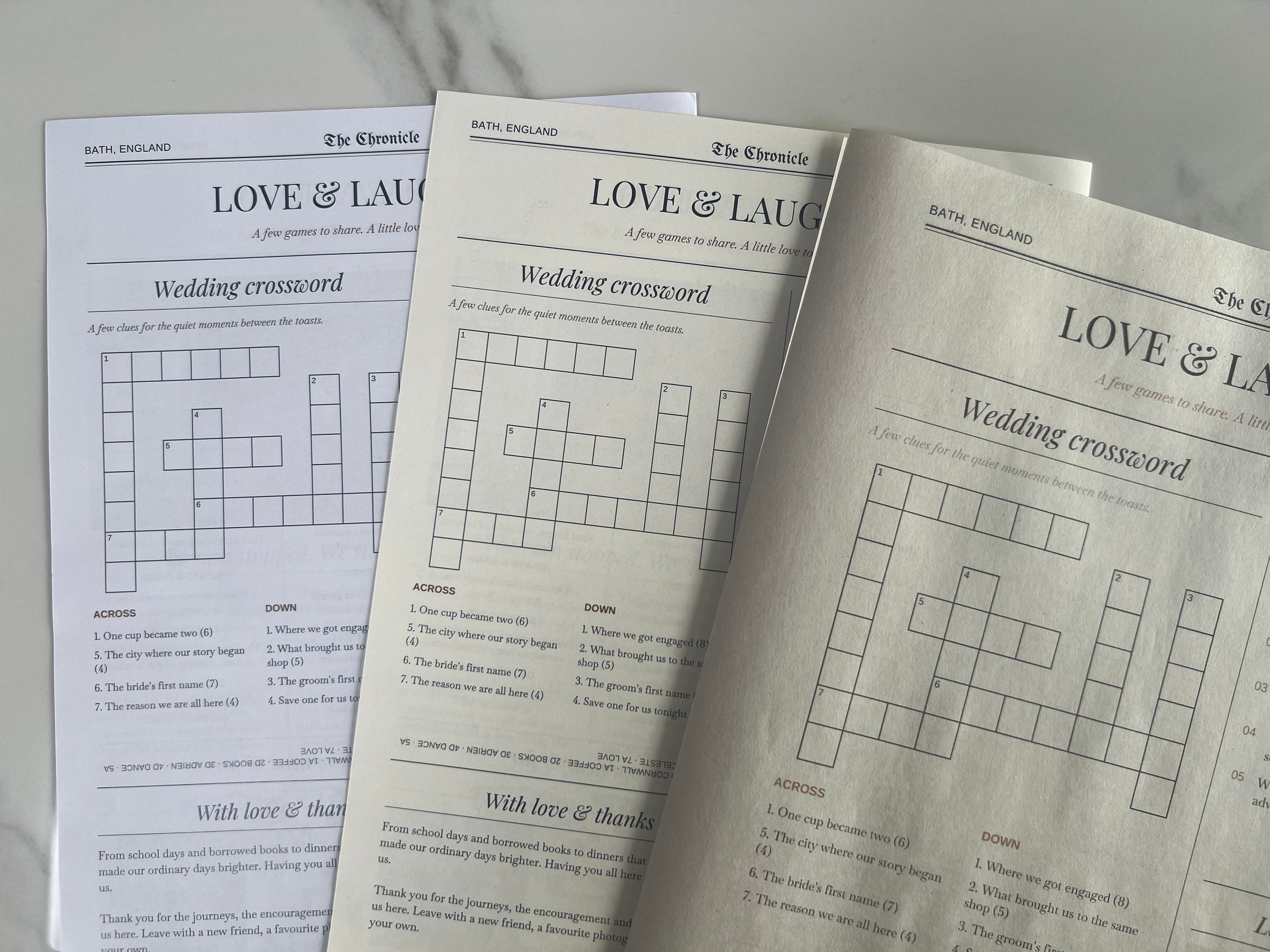
A home print can help you judge the size of a face and the crop, but it cannot reproduce another printer’s ink and paper. If those qualities matter to your choice, order a proof on the intended stock. For paper options and how to place that order, use the printing guide.
6. Review the photographs in your Vowfold edition
Vowfold’s guided editor keeps the fonts and page grid designed for you. Add your words and photos, choose from the available optional sections, and review the resulting layout without arranging individual text boxes. The design is structured, so choose photographs that suit its frames rather than expecting freeform resizing of every element.
- Start with the cover and main story image. Check that both people remain in the intended crop.
- Review each timeline image individually. A photo that works large may be unclear as a small portrait.
- Check any optional photo section after choosing it. A shared pet photo needs a different composition from an individual portrait.
- Preview every page again after changing optional sections or words; judge the photo as part of the final page.
- When ready for print, inspect the particular PDF you will send to the printer, since the five formats have different page dimensions.
You can edit and preview all four pages free. The finished PDF files are paid downloads; physical printing is separate. The complete sample shows how large photographs and smaller personal details work together. Its fictional people and wedding details are examples, not a substitute for checking your own files.
7. A final photo proof checklist
Use the intended print file and check a folded copy at its real size. Write down the filename or version you approved so an older proof is not mistaken for the final edition.
- Identity: faces match the original photographs, without altered features or stretched proportions.
- Crop: heads, hands and important details remain visible; circular portraits do not cut through faces.
- Sharpness: eyes and key details are clear enough at normal reading distance, especially on the cover.
- Tone: dark areas retain useful detail; faces are neither too dark nor washed out.
- Placement: the fold and page edges leave subjects comfortable space.
- Content: the correct photo accompanies each timeline date, pet name and caption.
- Final file: any replacements appear in the exported PDF, not only the editor preview.
Common photo problems
The photo has enough pixels. Why is it still blurry?
Pixel dimensions describe the file, not whether the camera focused correctly. Compare the original with the PDF. If the original is already soft, use a smaller placement or another photo. If only the PDF is soft, check whether a compressed copy was uploaded and ask your editor or printer to inspect the file.
Can we use an old scanned photograph?
Yes, if it works at the intended size. Scan the original rather than a printed copy of a screenshot, keep the full scan, and calculate the resolution of the final crop. A small historical photograph can be valuable to the story even if you would not enlarge it onto the cover.
Do all our photos need to be professional?
No. Choose clear, meaningful images with permission to use them. A candid phone photo can work well; a professional image can still be unsuitable if the needed crop removes a person or the file you downloaded is only a small preview.
Should we use an AI tool to sharpen faces?
Keep the original as your reference. Some enhancement tools can change fine facial details. Compare carefully at the final size and reject edits that change a person’s appearance. A different original photograph is preferable when an enhancement makes the people inaccurate.
Sources and editorial checks
Printer guidance checked on 29 October 2026: Newspaper Club’s document setup guidance and image-resolution explanation. The broader print reference is Adobe’s print-resolution guidance. The pixel tables and crop calculation above are our worked examples, not specifications for fixed Vowfold frames. Product descriptions were checked against the current Chronicle editor and export formats; the photographs show our own printed sample.